

Grok Bot can read and summarize your Telegram chats, but only once you give it a way in. The way in is an MCP server. MCP (the Model Context Protocol) is the open standard that lets an AI app call outside tools, and Grok Bot can add any MCP server that is reachable over the web.
This guide connects Grok Bot to Telegram using Automata, a free, open-source Telegram MCP server. Automata links your personal Telegram account as an extra device, the same way Telegram Desktop does. Grok Bot supports custom MCP servers that use an Authorization: Bearer key, which is exactly how Automata authenticates. You do not need a plugin or a catalog listing: you tell Grok Bot the name, the URL, and the key, and it does the rest.
Don't want to run anything yourself? Automata has a hosted option at mcp.getautomata.app. Sign up, link Telegram, and use https://mcp.getautomata.app/mcp as the URL in step 2.
Grok Bot on Telegram vs Grok Bot with your Telegram
There are already ways to connect Grok Bot to Telegram, but most of them solve a different problem: they let you talk to Grok Bot from Telegram, not let Grok Bot work with your Telegram chats.
Talking to Grok Bot from Telegram. Community bridges such as grokbot-telegram connect a bot you create with BotFather to Grok Bot. You message that bot, or mention it in a group, and Grok Bot answers there instead of in its own app. These bridges are not made by xAI. Like every Telegram bot, the bridge only receives messages sent to the bot and messages in groups the bot has been added to, so Grok Bot still cannot read your existing conversations, search your history, or reply as you.
Giving Grok Bot your Telegram. To let Grok Bot read, search, and summarize the chats you already have, it needs access to your own account. Automata links your personal account as an extra device and exposes only the chats and actions you put on the connector token.
Some guides suggest a shortcut instead: open Telegram Web on Grok Bot's computer and scan its login QR code. That does give Grok Bot your chats, but it hands over the whole account, with every chat visible and nothing stopping it from sending. With Automata, the token decides which chats Grok Bot can see and whether it can send at all.
The two approaches work together. Use a bridge if you want to message Grok Bot from Telegram, and Automata if you want Grok Bot to work with your chats.
There is also no official Grok bot that can read your Telegram. In May 2025, Telegram's founder announced a deal to bring Grok into Telegram's apps, and Elon Musk replied that no deal had been signed. Either way, an assistant built into an app answers the questions you send it; it does not give Grok Bot scoped access to your own chats.
With Automata, Grok Bot can list, read, search, and, if you allow it, reply in the chats you choose. It gets five Telegram tools:
get-telegram-statuschecks that your account is linked and shows sync progress.list-telegram-chatslists the chats, groups, and channels you allowed.read-telegram-messagesreads the history of one allowed chat, including forum topics.search-telegram-messagessearches message text and captions across the allowed chats.send-telegram-messagesends a text message to an allowed chat, if the token includes this tool.
What you need
- A Telegram account.
- Grok Bot, signed in and able to add custom MCP servers.
- Automata, either hosted at mcp.getautomata.app (no server to run), or your own instance with a public HTTPS URL. For self-hosting, the quickest option is the one-click Railway template; you can also self-host with Docker. Self-hosting also needs your own Telegram API ID and API hash from my.telegram.org.
- A Telegram account already linked in Automata and a connector token. If you have not done that yet, follow steps 1 to 3 of How to connect Claude to Telegram; they are identical for every client.
- About ten minutes.
How the connection works
Three pieces are involved, and only the middle one is new:
- Grok Bot is the MCP client. It sends requests to a URL and attaches your key in the
Authorizationheader. - Automata is the MCP server. It checks the key on every request, enforces which chats are allowed, and exposes the Telegram tools.
- Telegram is linked to Automata through its Telegram bridge, which stores an encrypted session and syncs your chats. Grok Bot never sees your session or your phone number.
Because the permission check happens in Automata and not in the prompt, Grok Bot cannot talk its way into a chat you did not allow. Read more about how Automata enforces permissions.
Step 1: Get your endpoint and key
Open your Automata dashboard and create a connector token for your Telegram connection. Each connector token has two settings. Chats decides which conversations it can see. Actions decides which tools it can call: the read tools, and send-telegram-message to send. The two are independent, so a token that can send can send to any chat on its list.
A new token starts with all chats and all actions, so narrow both: choose Only selected chats, then Only selected actions with just the read tools. To let Grok Bot reply in one group only, create a separate token for that group with sending enabled. You need two values:
Endpoint: https://your-automata.example.com/mcp
Authorization: Bearer <connector-token>
If you use hosted Automata, the endpoint is always https://mcp.getautomata.app/mcp, and you create the token from your hosted dashboard.
Use the bearer-header format rather than putting the token in the URL. URLs end up in logs; headers usually do not. The MCP clients docs cover both formats.
Anyone with the token can use the chats it allows. Do not paste it into a public chat or a screenshot. If it leaks, revoke that one token in Automata and create a new one.
Step 2: Ask Grok Bot to add a custom MCP server
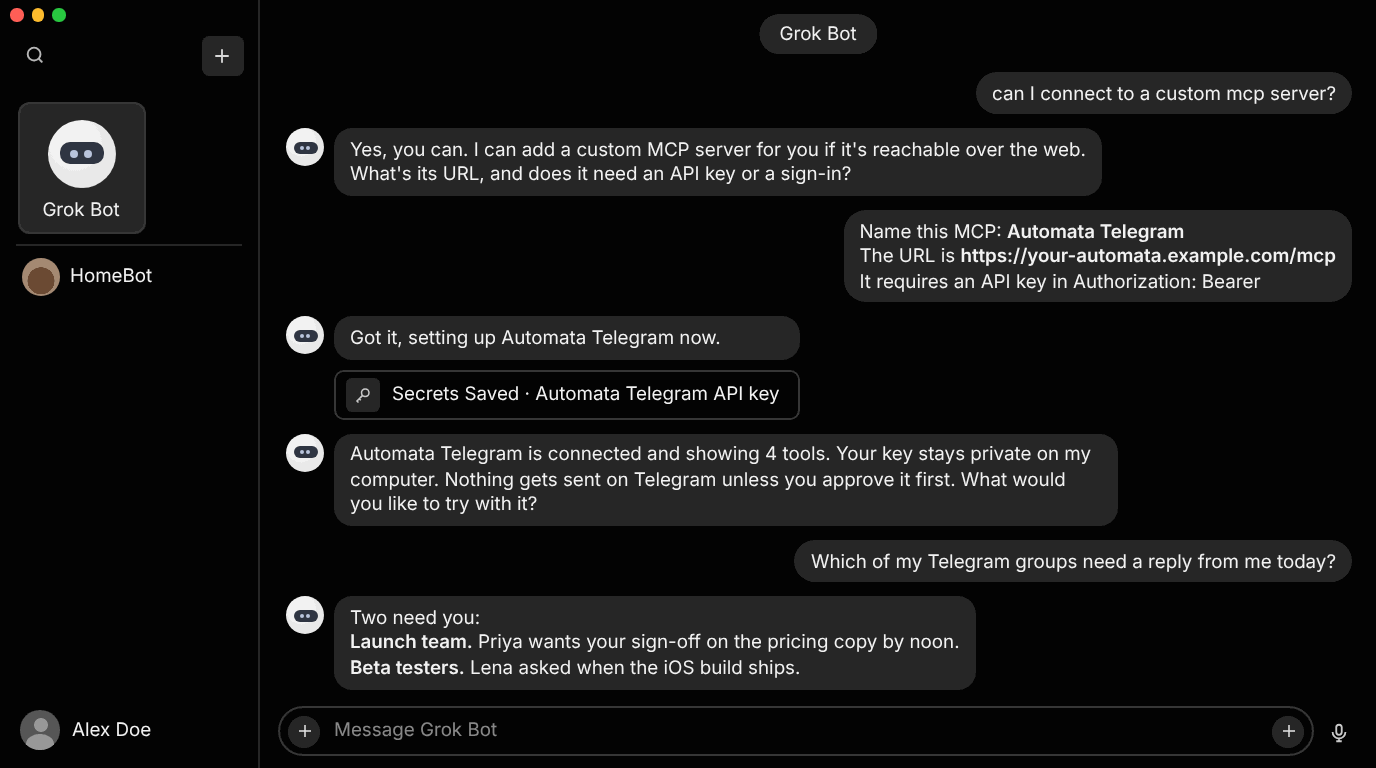
Open a chat with Grok Bot and ask whether it can connect to a custom MCP server. It will confirm and ask for the URL and whether a key or sign-in is needed. Reply with the name, the URL, and the authentication type in one message:
Name this MCP: Automata Telegram
The URL is https://your-automata.example.com/mcp
It requires an API key in Authorization: Bearer
Grok Bot recognizes that the server is not in its connector catalog and sets it up as a custom server. It will tell you that the server will be able to act on your Telegram account through Automata, and may ask you to confirm how to add it.
If you already added Automata for WhatsApp, give this one a different name, such as Automata Telegram, and use the Telegram connection's token. Each token belongs to one connection.
Step 3: Save the API key
When Grok Bot asks for the key, enter your connector token in the secure prompt. It shows a Secrets Saved confirmation once the key is stored.
Grok Bot stores the key with the server entry, so you never paste the token into the conversation itself.
Step 4: Confirm the tools are connected
Once the key is saved, Grok Bot reports that Automata is connected and lists how many tools it found. With a read-only token, as in the example above, it shows 4 tools.
The number depends on your token. Automata only registers the tools in the token's Actions setting, so a read-only token shows four tools and one that can also send shows five. If the count is lower than you expected, check the token's Actions in your dashboard. Chat choices never change the count.
Step 5: Test it
Start with a safe, read-only request before asking for anything that sends a message. Try:
Check the Telegram connection status.
Grok Bot calls get-telegram-status and should report the account as linked, along with how far the history sync has got. Then move to prompts that match the chats you allowed:
- Which of my Telegram groups need a reply from me today?
- Summarize what the Launch team discussed this week.
- Find the link Sam shared in the Dev chat on Tuesday.
- List every question in the Beta testers group that nobody has answered.
In the example above, Grok Bot read the allowed groups and replied with the two that needed the user, naming who asked and what they were waiting for. Because the token was read-only, it could not have replied even if asked, which is the behavior you want while you are testing.
Ask Grok Bot about a chat you did not allow and it will not find it. That is the permission layer working as intended.
Keep it safe
- Start read-only. Limit the token to one or two chats and the read tools first. If Grok Bot needs to reply in one group, create a separate token for that group with sending enabled.
- Keep approvals on. Check that Grok Bot asks before sending, and keep that confirmation on so every outgoing message is one you approved.
- Revoke per client. Create a separate token for Grok Bot so you can revoke it without breaking Claude or any other client.
Troubleshooting
| Symptom | Likely cause and fix |
|---|---|
Grok Bot reports a 401 error | The key is missing, invalid, expired, or revoked. Create a new connector token and save it again. |
| Grok Bot cannot reach the server | The URL is not public or not HTTPS. Use your deployed Automata URL, not localhost, and make sure it ends in /mcp. |
| Fewer tools than expected | The token's Actions setting allows only some tools. Edit the token and add the tools you need, then reconnect the server in Grok Bot. (Chat choices don't change the tool count.) |
| A chat is missing from the results | It is not allowed on this token, it is a secret chat, or it is a broadcast channel and channel backfill is off. |
| Older messages are missing | History is still backfilling, or it hit the per-chat or day limit. get-telegram-status shows sync progress. |
| The account keeps unlinking | When self-hosting, two bridge processes are competing for the session, or the encryption key changed. Run one replica and keep the key stable. |
More fixes are in the Telegram connection docs and the troubleshooting guide.
Frequently asked questions
Is it free to connect Grok Bot to Telegram?
Yes. Automata is MIT licensed and free to self-host, including the one-click Railway template. A hosted version is available at mcp.getautomata.app.
Does it use the Telegram Bot API?
No. Automata links your personal account as an additional device, so Grok Bot can work with your own chats rather than only the chats a bot has been added to.
I already message Grok Bot from Telegram. Do I still need this?
Yes, if you want Grok Bot to read your chats. A Telegram bridge only lets you send messages to Grok Bot through a bot, and that bot only sees messages sent to it. Automata is what gives Grok Bot access to the chats in your own account, limited to the ones you allow.
Can Grok Bot read Telegram groups and channels?
Yes. Groups, supergroups, forum topics, and channels appear alongside private chats, and you allow or block each one individually on the token.
Can Grok Bot send messages without asking me?
Check that Grok Bot asks before sending, and keep that confirmation on. Automata only registers the send tool if the token's actions include it, so a read-only token cannot send anything.
Next steps
- Read the Telegram MCP overview for what the five tools do and how scoped access compares to other servers.
- Connect Grok Bot to your other inbox with How to connect Grok Bot to WhatsApp.
- Use the same Telegram connection from Claude, and see every endpoint format in the MCP clients guide.
- Check every tool parameter in the MCP tools reference.
Comments
Questions, corrections, or your own setup? Join in below. Pick any name to post.