

Grok Bot can read and summarize your WhatsApp chats, but only once you give it a way in. The way in is an MCP server. MCP (the Model Context Protocol) is the open standard that lets an AI app call outside tools, and Grok Bot can add any MCP server that is reachable over the web.
This guide connects Grok Bot to WhatsApp using Automata, a free, open-source WhatsApp MCP server. Grok Bot supports custom MCP servers that use an Authorization: Bearer key, which is exactly how Automata authenticates. You do not need a plugin or a catalog listing: you tell Grok Bot the name, the URL, and the key, and it does the rest.
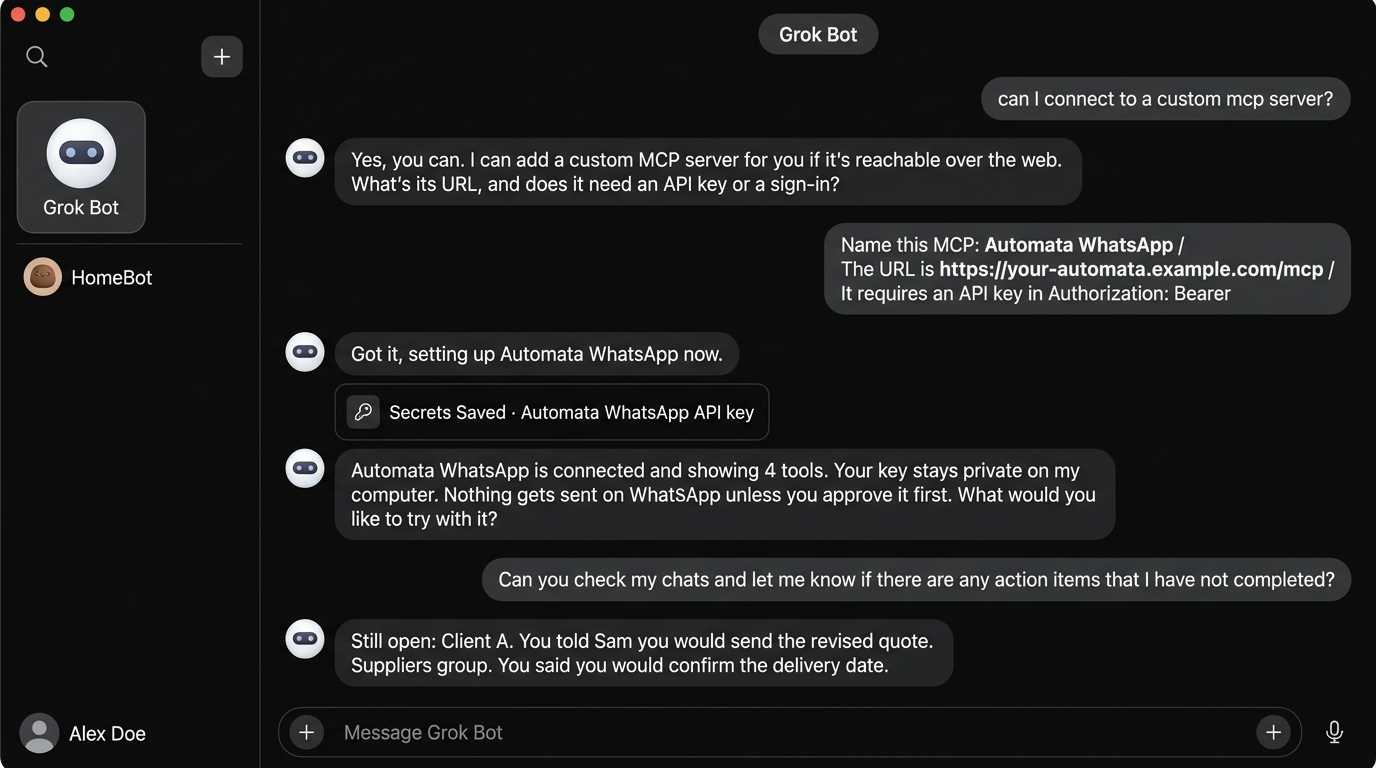
Don't want to run anything yourself? Automata has a hosted option at mcp.getautomata.app. Sign up, pair WhatsApp, and use https://mcp.getautomata.app/mcp as the URL in step 2. That is the exact setup shown in the screenshot below.
What you need
- A WhatsApp account. Use a spare number while testing, because unofficial clients carry some risk of rate limits or bans.
- Grok Bot, signed in and able to add custom MCP servers.
- Automata, either hosted at mcp.getautomata.app (no server to run), or your own instance with a public HTTPS URL. For self-hosting, the quickest option is the one-click Railway template; you can also self-host with Docker.
- A WhatsApp account already paired in Automata and a connector token. If you have not done that yet, follow steps 1 to 3 of How to connect WhatsApp to Claude; they are identical for every client.
- About ten minutes.
How the connection works
Three pieces are involved, and only the middle one is new:
- Grok Bot is the MCP client. It sends requests to a URL and attaches your key in the
Authorizationheader. - Automata is the MCP server. It checks the key on every request, enforces which chats are allowed, and exposes the WhatsApp tools.
- WhatsApp is paired to Automata as a linked device, so Grok Bot never touches your phone or your account credentials.
Because the permission check happens in Automata and not in the prompt, Grok Bot cannot talk its way into a chat you did not allow. Read more about how Automata enforces permissions.
Step 1: Get your endpoint and key
Open your Automata dashboard and create a connector token for your WhatsApp connection, choosing which chats the token may read or write. You need two values:
Endpoint: https://your-automata.example.com/mcp
Authorization: Bearer <connector-token>
If you use hosted Automata, the endpoint is always https://mcp.getautomata.app/mcp, and you create the token from your hosted dashboard.
Use the bearer-header format rather than putting the token in the URL. URLs end up in logs; headers usually do not. The MCP clients docs cover both formats.
Anyone with the token can use the chats it allows. Do not paste it into a public chat or a screenshot. If it leaks, revoke that one token in Automata and create a new one.
Step 2: Ask Grok Bot to add a custom MCP server
Open a chat with Grok Bot and ask whether it can connect to a custom MCP server. It will confirm and ask for the URL and whether a key or sign-in is needed. Reply with the name, the URL, and the authentication type in one message:
Name this MCP: Automata WhatsApp
The URL is https://your-automata.example.com/mcp
It requires an API key in Authorization: Bearer
Grok Bot recognizes that the server is not in its connector catalog and sets it up as a custom server. It will tell you that the server will be able to act on your WhatsApp account through Automata, and may ask you to confirm how to add it.
Step 3: Save the API key
When Grok Bot asks for the key, enter your connector token in the secure prompt. It shows a Secrets Saved confirmation once the key is stored.
Grok Bot keeps the key on your computer, and the server reads it from there, so you never paste the token into the conversation itself.
Step 4: Confirm the tools are connected
Once the key is saved, Grok Bot reports that Automata is connected and lists how many tools it found. In our test it showed 4 tools.
The number depends on your token. Automata only registers the tools your token allows, so a read-only token shows fewer tools than one that can also send messages. If the count is lower than you expected, check the chat permissions on the token in your dashboard.
Step 5: Test it
Start with a safe, read-only request before asking for anything that sends a message. Try:
Check the WhatsApp connection status.
Then move to prompts that match the chats you allowed:
- Can you check my chats and let me know if there are any action items that I have not completed?
- Only look at this week's chats.
- Summarize what Client A asked for in WhatsApp since Monday.
- Find the delivery date the supplier confirmed in the Suppliers group.
In the example above, Grok Bot searched the chats from the start of the week and replied with a short Still open list, quoting what the user had promised and noting when nothing in the chat showed it was done. It also flagged items it could not tell were finished, which is the behavior you want from an assistant that only reads.
If you narrow the request, as in "only look at this week's chats", Grok Bot adjusts and searches only that window.
Keep it safe
- Start read-only. Give the token read access to one or two chats first, and add write access only where you want Grok Bot to reply.
- Keep approvals on. Grok Bot asks before sending anything on WhatsApp. Leave that confirmation enabled so every outgoing message is one you approved.
- Revoke per client. Create a separate token for Grok Bot so you can revoke it without breaking Claude or any other client.
- Keep a spare number for experiments and avoid bulk or unsolicited messaging.
Troubleshooting
| Symptom | Likely cause and fix |
|---|---|
Grok Bot reports a 401 error | The key is missing, invalid, expired, or revoked. Create a new connector token and save it again. |
| Grok Bot cannot reach the server | The URL is not public or not HTTPS. Use your deployed Automata URL, not localhost, and make sure it ends in /mcp. |
| Fewer tools than expected | The token only allows some tools. Raise the permission on the chats you need. |
| A chat is missing from the results | It is not allowed on this token, or it has no stored messages yet. Check the chat permissions and your history sync. |
| Sending is refused | The WhatsApp account is disconnected, or the chat does not have write access. Re-pair the account or raise the permission. |
More fixes are in the troubleshooting guide.
Next steps
- Turn this connection into a daily brief with the free AI chief of staff tutorial.
- Connect more clients, including Claude, ChatGPT, and Cursor, with the MCP clients guide.
- Read the WhatsApp MCP overview for what each tool does and how scoped access compares to other servers.
Comments
Questions, corrections, or your own setup? Join in below. Pick any name to post.