

Claude cannot read Telegram on its own. To let it summarize a busy group, find a link someone shared last week, or draft a reply, you connect it to your account through an MCP server. MCP (the Model Context Protocol) is the open standard Claude uses to talk to outside tools.
This guide uses Automata, a free, open-source Telegram MCP server. It links your personal Telegram account as an extra device, the same way Telegram Desktop does, then lets you decide which chats Claude can see and which actions it can take. By the end, Claude will be able to work with the chats you approve and nothing else.
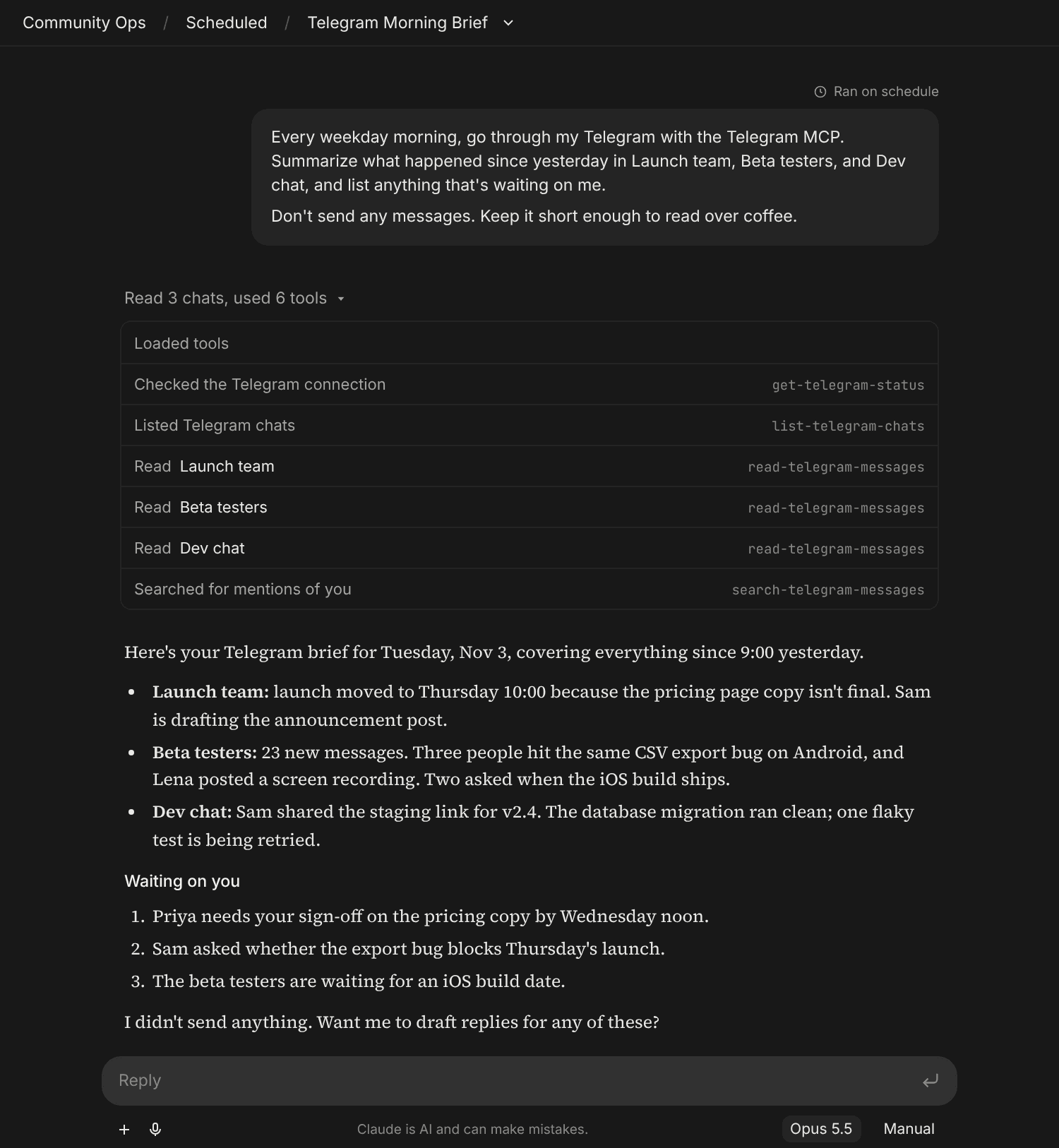
Here is what that looks like in practice. Every weekday morning, a scheduled Claude task reads your busiest Telegram groups and tells you what changed and what is waiting on you:
Can Claude read and send Telegram messages?
Not on its own. Claude.ai, Claude Desktop, and Claude Code have no built-in Telegram integration, and Anthropic does not run an official Claude bot on Telegram.
There are two ways to bridge the gap:
- A Telegram bot that forwards messages to Claude. A bot only sees chats it has been added to, so it cannot read your existing conversations or reply as you.
- An MCP server linked to your own account. Claude works with your real chats, groups, and channels, limited to the ones you allow. This is what Automata does.
Automata gives Claude five Telegram tools:
get-telegram-statuschecks that your account is linked and shows sync progress.list-telegram-chatslists the chats, groups, and channels you allowed.read-telegram-messagesreads the history of one allowed chat, including forum topics.search-telegram-messagessearches message text and captions across the allowed chats.send-telegram-messagesends a text message to an allowed chat, if the token includes this tool.
Every tool is limited to the chats on the token, so Claude cannot read or message anyone else.
What you need
- A Telegram account.
- Your own Telegram API ID and API hash from my.telegram.org, if you self-host.
- A Claude account on a plan that supports custom connectors. Anthropic changes plan availability over time, so check their current details.
- Somewhere to run Automata. The easiest option is the hosted version at mcp.getautomata.app, which needs no server. To self-host instead, use the one-click Railway template or Docker.
- About ten minutes.
How the connection works
Three pieces are involved, and only the middle one is new:
- Claude is the MCP client. It sends requests to a URL.
- Automata is the MCP server. It checks the connector token on every request, enforces which chats are allowed, and exposes five Telegram tools.
- Telegram is linked to Automata through its Telegram bridge, which stores an encrypted session and syncs your chats into Postgres. Claude never sees your session or your phone number.
Because the permission check happens in Automata and not in the prompt, Claude cannot talk its way into a chat you did not allow. Read more about how Automata enforces permissions.
Step 1: Choose hosted or self-hosted Automata
You can skip deployment entirely by signing up for hosted Automata at mcp.getautomata.app. Then continue to step 2 and link Telegram from the hosted dashboard. Self-hosting is the only route where your messages and session stay on infrastructure you control, so pick based on how sensitive your chats are.
To self-host, deploy Automata somewhere Claude can reach. If you plan to use Claude.ai or Claude Desktop, the server needs a public HTTPS URL, because those apps connect from Anthropic's servers and cannot see localhost.
The Railway template provisions Automata, PostgreSQL, and the Telegram bridge. Create your API credentials at my.telegram.org under API development tools, then set them on the bridge:
TELEGRAM_API_ID=<from-my.telegram.org>
TELEGRAM_API_HASH=<from-my.telegram.org>
TELEGRAM_SESSION_ENCRYPTION_KEY=<openssl-rand-hex-32>
Do not reuse example credentials published online; Telegram refuses them. The full list of variables is in the Telegram connection docs.
Every stored Telegram session is sealed with TELEGRAM_SESSION_ENCRYPTION_KEY. Losing or changing it unlinks every account, so store it somewhere safe.
Claude Code runs on your machine, so a local Automata instance at http://localhost:3000 works for it. For Claude.ai and Claude Desktop, deploy to Railway or your own server.
Step 2: Link Telegram
Open your Automata dashboard, create a Telegram account connection, and choose Show QR code. On your phone, go to Telegram → Settings → Devices → Link Desktop Device and scan it.
If your account has two-step verification, Automata asks for your password. It is sent to Telegram to finish the login and is never stored.
Once linked, new messages sync in real time while older history is fetched gradually in the background. Private chats, bots, groups, supergroups, forum topics, and channels are all included. Broadcast channels are skipped unless you turn them on, and secret chats never appear because they only exist on the device that created them.
Step 3: Choose the chats
Create a connector token for this connection. Instead of exposing every conversation, each token has two settings.
| Setting | What it controls |
|---|---|
| Chats | Which conversations the token can see: All chats or Only selected chats |
| Actions | Which tools it can call: the read tools (get-telegram-status, list-telegram-chats, read-telegram-messages, search-telegram-messages), and send-telegram-message to send |
The two are independent, so a token that can send can send to any chat on its list. A new token starts with all chats and all actions, so narrow both: choose Only selected chats and pick one or two, then Only selected actions with just the read tools. To let Claude reply in one group only, create a separate token for that group with sending enabled.
Only the actions you allow are registered, so a read-only token cannot send anything. Automata shows the token once, and changes to its chats or actions apply on the next request.
Step 4: Add it to Claude
Copy the connector URL from the dashboard. The endpoint looks like this:
https://your-automata.example.com/mcp/<connector-token>Claude.ai and Claude Desktop
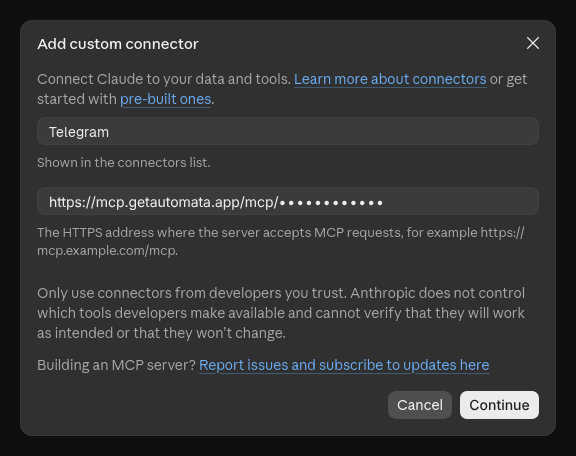
- Open Settings → Customize → Connectors.
- Click Add and choose Add custom connector.
- Enter a name such as
Telegramand paste the connector URL. - Click Continue, then enable the connector in a new chat.
Claude Code
Run one command, replacing the URL with your own:
claude mcp add --transport http automata-telegram \
  https://your-automata.example.com/mcp/<connector-token>
If you also connect WhatsApp or Postgres through Automata, give each connector a distinct name. If your client supports custom headers, you can use the plain /mcp endpoint with an Authorization: Bearer header instead, which keeps the token out of URLs. The MCP clients docs cover both formats.
Step 5: Test it
Start with the safest possible request. In a new chat with the connector enabled, ask:
Check the Telegram connection status.
Claude calls get-telegram-status and should report the account as linked, along with how far the history sync has got. Then try prompts that match the chats you allowed:
- Summarize what the Launch team discussed in Telegram this week.
- Find the link Sam shared in the Dev chat on Tuesday.
- List every open question in the Beta testers group since Monday.
- Draft a reply in the Community group confirming the new meetup date.
Ask Claude about a chat you did not allow and it will not find it, and a direct request for it is refused. That is the permission layer working as intended.
Once the basics work, try a scheduled task like the morning brief at the top of this guide.
Keep it safe
- Treat the connector URL like a password. Anyone with the token can use the chats it allows. If it leaks, revoke that one token and create a new one; your other clients keep working.
- Prefer header authentication when your client supports it, since URLs often end up in logs.
- Enable sending only on a token that needs it. Reading is low risk; sending messages as you is not.
- Run one bridge process. Two processes sharing a Telegram session can invalidate it, so keep a single replica when self-hosting.
Troubleshooting
| Symptom | Likely cause and fix |
|---|---|
Claude shows a 401 error | The token is missing, invalid, expired, or revoked. Create a new connector token and update the URL. |
| Claude.ai cannot connect | The URL is not public. Claude.ai connects from Anthropic's servers, so use a deployed HTTPS URL, not localhost. |
| Add a connection says Telegram is not configured | The bridge has no API credentials. Set both TELEGRAM_API_ID and TELEGRAM_API_HASH, then restart the bridge. |
| A chat is missing from the list | It is not allowed on this token, it is a secret chat, or it is a broadcast channel and channel backfill is off. |
| Older messages are missing | History is still backfilling, or it hit the per-chat or day limit. get-telegram-status shows sync progress. |
| The account keeps unlinking | Two bridge processes are competing for the session, or the encryption key changed. Run one replica and keep the key stable. |
| Fewer tools than expected | The token's Actions setting allows only some tools. Edit the token, then reconnect the connector in Claude. |
More fixes are in the troubleshooting guide.
Frequently asked questions
Is it free to connect Claude to Telegram?
Yes. Automata is MIT licensed and free to self-host, including the one-click Railway template. A hosted version is available at mcp.getautomata.app. You still need a Claude plan that supports custom connectors.
Does it use the Telegram Bot API?
No. Automata links your personal account as an additional device, so Claude can work with your own chats rather than only the chats a bot has been added to.
Can Claude read Telegram groups and channels?
Yes. Groups, supergroups, forum topics, and channels appear alongside private chats, and you allow or block each one individually on the token.
Can Claude see photos and voice notes?
No. Claude sees message text and captions. Photos, voice notes, and files are not sent to Claude.
Next steps
- Read the Telegram MCP overview for what the five tools do and how scoped access compares to other servers.
- Connect the rest of your inbox: connect WhatsApp to Claude or connect Claude to email.
- Use the same Telegram connection from another AI app: connect Grok Bot to Telegram.
- Check every tool parameter in the MCP tools reference.
- Lock things down further with the permissions docs.
Comments
Questions, corrections, or your own setup? Join in below. Pick any name to post.