

Malfoid is a fan-made, gender-swapped version of Harry Potter's Draco Malfoy, usually drawn as an anime-style tsundere girl. In autumn 2026 the character took off as a series of short AI-animated clips, mostly built around an enemies-to-lovers dynamic with Harry. Creators often credit tools such as Higgsfield, Vidu, Seedance, and Grok Imagine in their captions.
This guide shows the production technique behind those clips with Higgsfield: one consistent character, short animated shots, and an edit that turns them into a series. You can follow it for Malfoid, or use the same method for any original character of your own.
What Malfoid is
There is no official storyline. Each creator runs an independent, non-canon series, which is why the clips vary so much in plot but look so alike in style. Gender-swapped Draco fan art has existed for years, and the current wave was widely traced to a viral post by the artist @redteneri, which is embedded in the examples section below.
The word "Malfoid" blends Malfoy with a derogatory term, and some fans prefer names such as Draconia or Female Draco. This guide uses Malfoid because it is the name people search for. If you publish your own series, you can pick whichever name you are comfortable with.
The look comes down to a small set of fixed traits:
| Trait | Detail |
|---|---|
| Hair | Pale platinum blond, sleek |
| Face | Sharp eyes, a smug or flustered expression |
| Outfit | Slytherin-style school uniform, green and silver |
| Personality | Tsundere: cold and proud on the surface, soft underneath |
| Format | Short vertical clips of roughly 3 to 10 seconds each |
Only the situation changes from clip to clip. The face, hair, and outfit stay locked, and that is what makes viewers recognize her in a feed.
Popular Malfoid examples
Because no one owns the character, the best way to learn the look is to watch what the fandom has already made. Here are a few widely shared examples, each linked to its creator. Study the pacing, the framing, and how each one keeps the character consistent from shot to shot.
The trend is usually traced to this illustration by REDTEN, posted on X on September 22, 2026. It is hand-drawn, and it is the reference most AI series are chasing.
Full short films show how far a single consistent character can carry a story. This one is a complete anime short with a clear plot, and it is a good model for how many shots you need.
This fan film is set at the Yule Ball. Note how the setting does most of the storytelling, so each shot can stay simple.
The short vertical format that feeds TikTok and Reels works at 9:16, so this is the format closest to what you will post.
For more, the fan-run Malfoid library catalogs hundreds of credited fan videos, comics, fan art, and stories. It is an independent fan site and is not affiliated with Automata or Higgsfield.
What you need
- A Higgsfield account. New accounts get free credits, so you can test the whole workflow before paying.
- A character idea. Malfoid is based on existing, copyrighted characters, so decide up front whether this is private practice or something you will publish.
- A rough plot for three to five shots, such as a hallway stare, a flustered look away, and a reluctant smile.
- Around forty-five minutes.
Draco Malfoy and the Harry Potter setting belong to their rights holders. Fan art is widely shared, but you should not sell it or present it as official. If you want a series you can monetize, keep the style and swap in an original character, name, and uniform.
Step 1: Write the character sheet
Before you generate anything, write down the traits that must stay identical in every clip. Keep it to five or six lines, because every extra detail is something the model can get wrong.
Age: late teens
Hair: platinum blond, sleek, chin length, side parted
Eyes: sharp grey, narrowed
Outfit: green and silver school uniform, dark robe, loose tie
Expression: smug, with a hint of a blush
Style: anime, soft cel shading, clean line art
The style line matters as much as the appearance lines. If the style drifts between shots, viewers read it as a different character.
Step 2: Generate the reference image
Open Higgsfield's image tools and generate a single, clean still of the character. This is your master reference, so spend your credits here.
Anime-style girl with sleek platinum blond chin-length hair and sharp grey
eyes, smug expression with a faint blush, green and silver school uniform
with a dark robe and loose tie. Soft cel shading, clean line art, plain
light background, full body, front view.
A plain background and a front-facing, full-body view give the model the most information to hold on to. Generate several versions, then pick the one where the face and uniform are closest to your sheet. If something is wrong, change one thing at a time, such as the tie or the hair length, instead of rewriting the whole prompt.
Step 3: Save her as a character
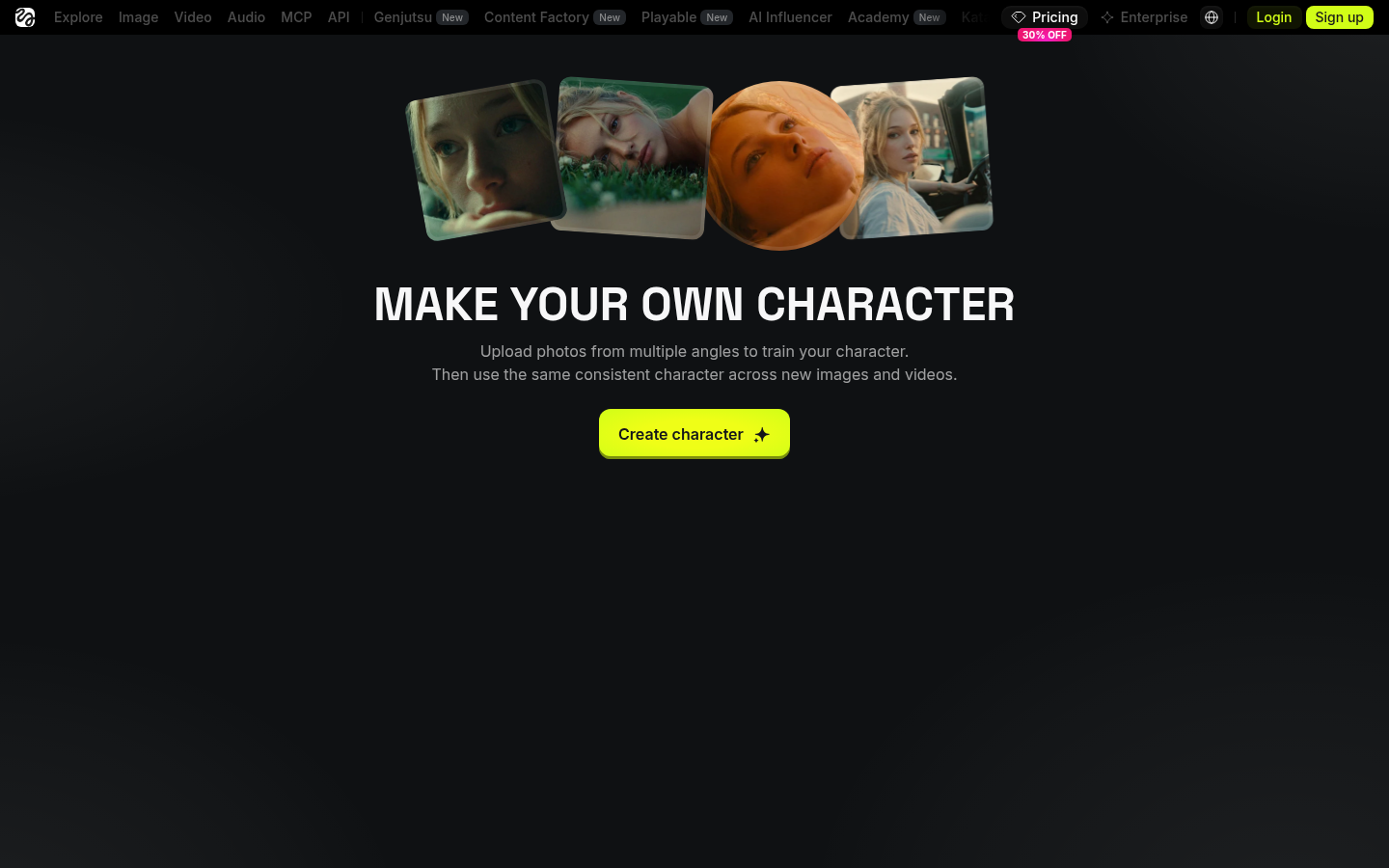
Higgsfield lets you turn a character into a reusable asset so you do not have to describe her again for every shot. On the character page you upload images from multiple angles, train the character, and then reuse it in new images and videos.
Soul ID works best with photographs of a real person. For an illustrated character like Malfoid, the simpler route is to save your best reference image and several matching angles, then attach them as references when you generate video. Either way, the rule is the same: always generate from the saved reference, not from a fresh text prompt each time.
Do not upload photos of real people without their permission, and do not train a character on another artist's artwork. Use images you generated yourself or own.
Step 4: Animate the shots
Now turn the still into short clips. Creators typically animate in a video model such as Seedance, Kling, or Vidu, all available through Higgsfield. Generate each shot separately, three to ten seconds at a time.
A prompt that works well follows a fixed structure: the subject and action, the environment, the camera move, the light, and the mood. Tag your saved character as a reference so the model keeps her face.
@Character glances sideways in a stone castle corridor, then looks away
with a flustered scowl. Slow push-in, warm candlelight, soft cel-shaded
anime style, moody and romantic.
Some details that help:
- Keep each shot to one clear action. Two actions in ten seconds usually means one of them looks wrong.
- Use the same still as the first frame for related shots, so the pose and framing stay stable.
- Ask for a slow camera move, such as a push-in. Fast cuts and spins make faces drift.
- Generate two or three takes of each shot and keep the best one.
Step 5: Edit the series
The clips on your feed are rarely a single generation. Creators assemble them in an editor such as CapCut: they cut the shots together, add a trending sound, and put short on-screen text over the key moments.
- Lay the shots out in story order, with the hook in the first second.
- Trim each clip to the strongest moment, usually under five seconds.
- Add a sound and keep the cuts on the beat.
- Add one line of on-screen text per shot, and no more.
- Post it as part of a numbered series, so viewers know to follow for the next part.
Because each creator runs their own storyline, the formula is yours to shape. A consistent character, a recognizable setting, and a repeatable format are what turn single clips into a series people follow.
Keep it honest
- Label AI content. Use the AI disclosure options on the platform you post to, and say in the caption which tools you used. Many creators already credit Higgsfield or Seedance there.
- Credit the source. If your character is a fan version of an existing one, say so and do not present it as official.
- Respect the fandom. Gender-swapped characters and the Malfoid name are contested among fans. Be thoughtful about tags and captions.
Troubleshooting
| Symptom | Likely cause and fix |
|---|---|
| The face changes between clips | You are prompting from scratch each time. Always attach the saved reference. |
| The uniform colors drift | Name the colors in every prompt, such as green and silver, and keep the same still as the first frame. |
| The style changes from anime to 3D | Repeat the style line in every prompt, for example soft cel shading and clean line art. |
| The motion looks warped | The shot asks for too much. Reduce it to one simple action and a slow camera move. |
| Hands or tie look wrong | Frame the shot from the chest up, or hide the hands, and regenerate. |
Drive it from Claude
Higgsfield also offers an MCP connection for Claude, so you can generate images and videos from a chat. If you keep story ideas or client briefs in WhatsApp, pair that with Automata, a free WhatsApp MCP server, and ask Claude to turn the right thread into a shot list and prompts. Automata only exposes the chats you allow, so the rest of your messages stay private.
Next steps
- Read how to recreate Jean Philanthrope with Higgsfield for a motion-transfer version of the same workflow.
- Read how to connect WhatsApp to Claude to set up the free WhatsApp connector.
- Review the permissions docs to see how chat-level access works.
Comments
Questions, corrections, or your own setup? Join in below. Pick any name to post.