

Jean Philanthrope, usually shortened to Jean Phil, is an AI-generated character who went viral in September 2026. He has a honey-blond bob, a curled handlebar mustache, and a brown houndstooth suit, and he shadowboxes in silence on Paris streets. The format is simple, which is exactly why it is easy to learn from: one consistent character, one repeatable motion, and a new location in every clip.
This guide shows how to build the same kind of AI influencer with Higgsfield AI Influencer. You will end up with your own original character who keeps the same face, hair, and outfit across clips, and who performs any movement you choose.
Who Jean Philanthrope is
Jean Phil is not a real person. Coverage describes him as an AI persona, and Higgsfield has publicly credited the account behind him in its promotional material for AI Influencer. The creator has not been formally identified, and the character has been linked to a meme coin. This guide is about the production technique only, and it does not cover or endorse any token.
What makes the character work is a small set of fixed traits:
| Trait | Detail |
|---|---|
| Hair | Honey-blond bob |
| Face | Curled handlebar mustache |
| Outfit | Brown houndstooth suit |
| Motion | Silent shadowboxing, camera held steady |
| Setting | Changes every clip, often Paris |
Only the setting varies. Everything else is locked, and that consistency is what makes viewers recognize the character in a feed.
What you need
- A Higgsfield account. New accounts get free credits to create a first influencer and run a video, so you can test the whole workflow before paying.
- A reference clip of the motion you want, between 3 and 30 seconds. A short shadowboxing clip works well. Use footage you filmed or have the rights to use.
- A character idea of your own. Do not copy a real person's face, and avoid reproducing Jean Phil exactly if you plan to publish.
- Around thirty minutes.
Recreating the technique is fine. Cloning another creator's character one to one is risky for both trust and copyright. Change the hair, the suit, or the face so the result is clearly yours.
Step 1: Write the character sheet
Before you open Higgsfield, write down the traits you want to stay identical in every clip. A character sheet keeps your prompts consistent, and consistency is what stops the face from drifting.
Age: mid-40s
Hair: honey-blond bob, jaw length, side parted
Face: curled handlebar mustache, calm focused expression
Outfit: brown houndstooth three-piece suit, white shirt, no tie
Build: lean, boxer's stance
Vibe: deadpan, silent, elegant
Keep it to five or six lines. Every extra detail is another thing the model can get wrong.
Step 2: Build him in AI Influencer
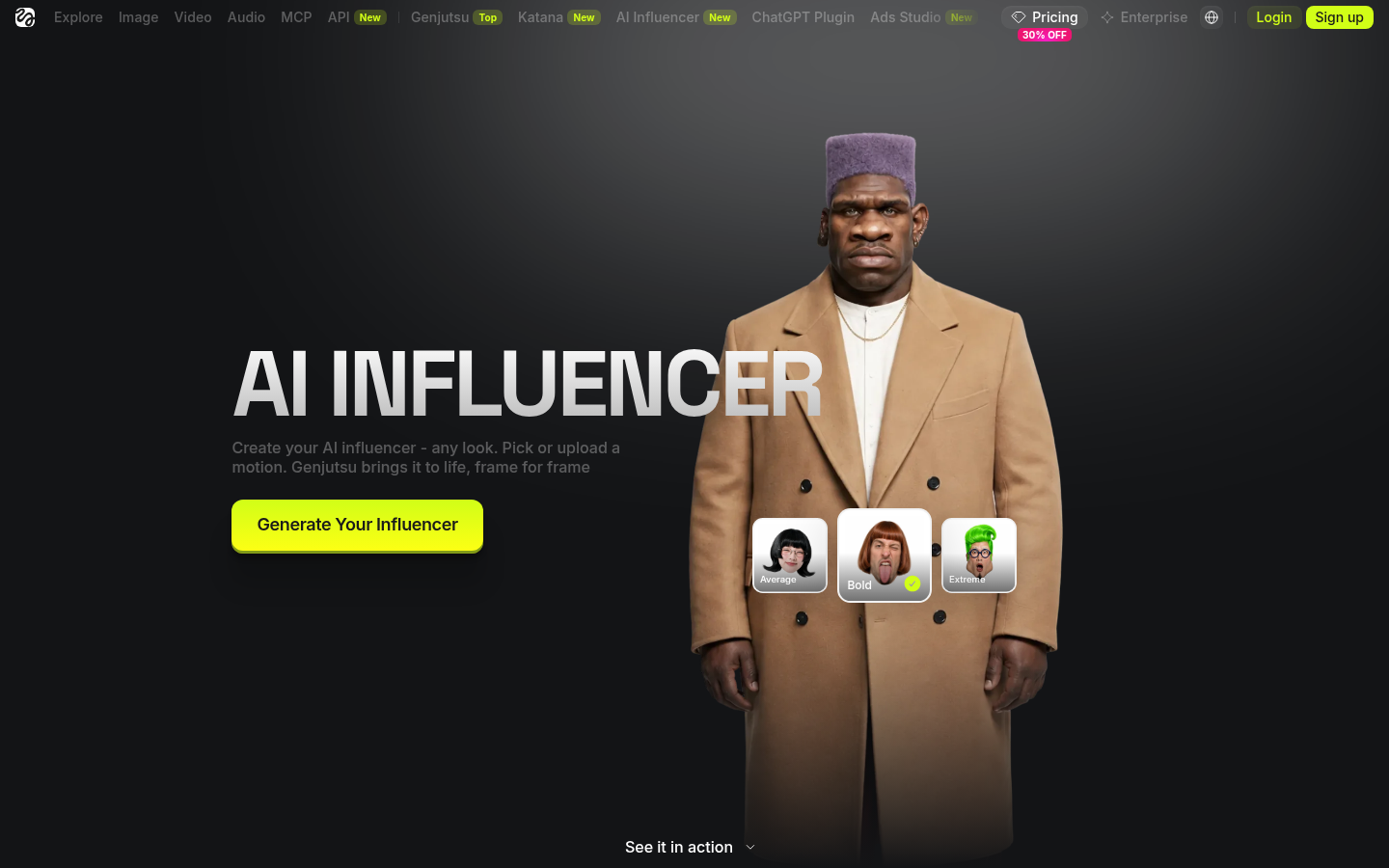
Open the AI Influencer page and start a new influencer. The builder is a set of tiles and toggles, so you do not need to write long prompts.
- Choose the character type and gender, then set ethnicity, age, and body type.
- Add the face and skin details that matter, such as the mustache.
- Prefer words over tiles? Type a prompt instead, using your character sheet.
- Generate. Higgsfield returns a portrait and a full-body shot on a white background.
A prompt based on the character sheet might look like this:
A man in his mid-40s with a honey-blond jaw-length bob and a curled
handlebar mustache, wearing a brown houndstooth suit and a white shirt.
Calm, focused expression. Full body, studio white background.
Creating or editing a character costs about 1.12 credits, so you can afford a few tries.
Step 3: Lock the look
Do not move on until the character looks right in both shots. Use Edit and describe a single change in plain language, such as "make the mustache thicker" or "darker brown suit". Only the thing you named changes, so you can tune the character without starting over.
Once you are happy, the character is saved in your library with the settings that created it. You can reuse it as a template for new characters, edit it later, or drop it into any video. Treat this saved character as your master reference and always generate from it, not from a fresh prompt each time.
Step 4: Pick the motion
Jean Phil's signature is the shadowboxing. In AI Influencer you give the character a motion in one of two ways:
- Trending preset. Pick a motion from a video that is performing well right now. Higgsfield keeps a curated, updated collection.
- Your own clip. Upload any reference video from 3 to 30 seconds. Higgsfield extracts the movement, camera, and timing frame for frame, and your character performs it.
For a shadowboxing character, upload a short clip of someone shadowboxing. Choose one with a steady camera and clear full-body framing, because the model copies the camera behavior along with the movement.
Step 5: Generate with Genjutsu
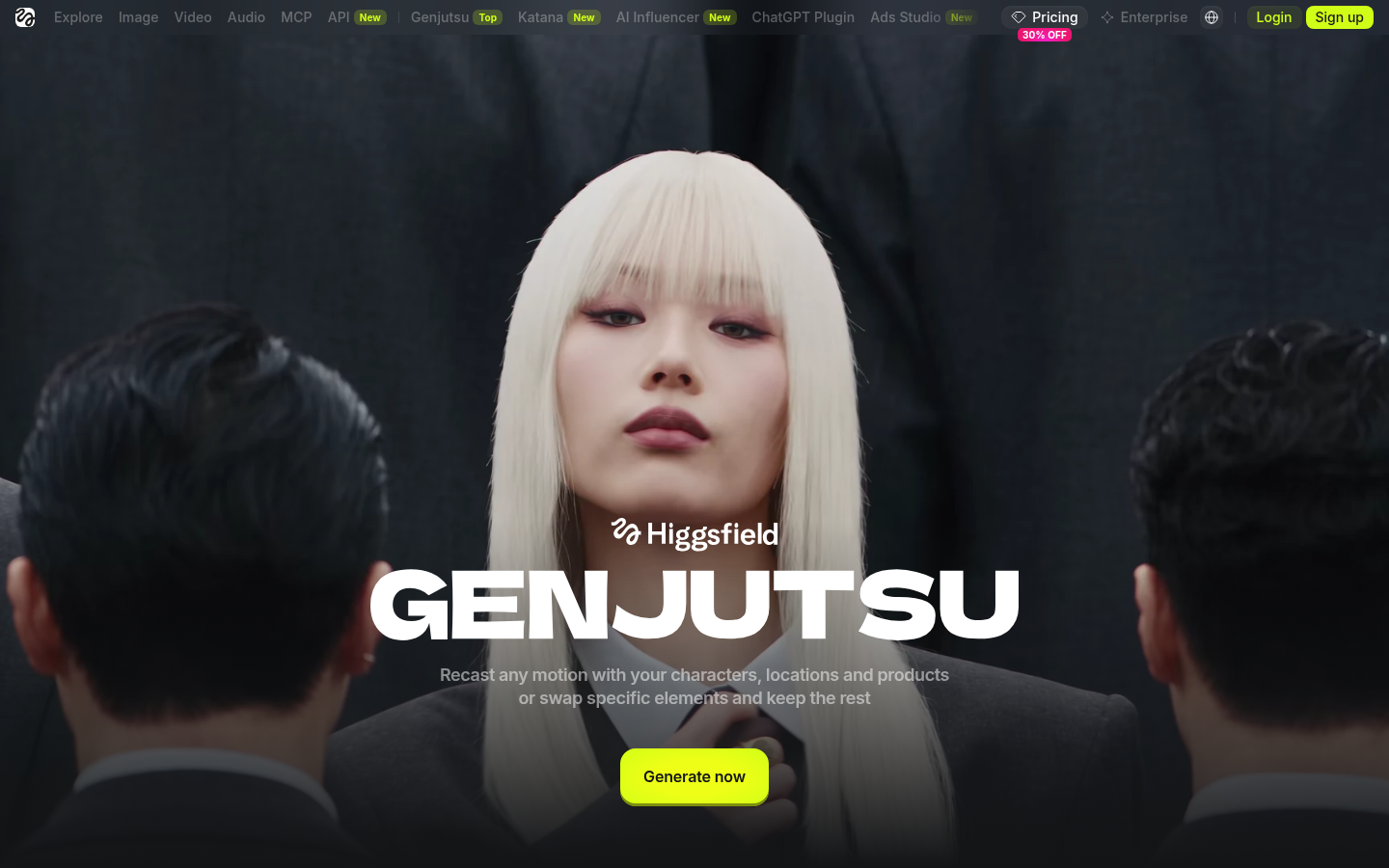
Every AI Influencer video runs on Higgsfield Genjutsu, the motion transfer model. Add your character as the subject, confirm the motion, and check the credit cost shown before you run it. Then generate.
Some details that help:
- You can add up to 40 images to a video, picked from your Elements, Uploads, Generations, or Liked items. Adding the portrait and full-body shots gives the model more to hold on to.
- Output is 1080p.
- If the first take is close but not right, open the clip in the full Genjutsu editor for deeper changes instead of regenerating from scratch.
Step 6: Change the scene
This is how you turn one character into a series. Genjutsu supports object swap, which changes one named element, such as the location, outfit, or a product, while the rest of the shot stays as filmed.
Run the same shadowboxing clip against different backdrops:
Swap the location: a rainy Paris side street at dusk
Swap the location: an empty rooftop at sunrise
Swap the location: a quiet metro platform
Batch variations let you run the same setup with several locations or outfits at once, pick the best, and generate more of it. Keep the character, motion, and framing fixed, and change only the setting. That is the whole Jean Phil formula.
Keep it honest
- Label AI content. Say clearly that the character is AI generated, and use the disclosure tools on the platform you post to.
- Use footage you have rights to. Motion references and any faces you upload must be yours to use. Only upload your own photo through "Add your face" if you want the character to look like you.
- Do not attach a product or token to a made-up person without saying so. Viewers trust characters less when they discover the commercial angle later.
Troubleshooting
| Symptom | Likely cause and fix |
|---|---|
| The face changes between clips | You are prompting from scratch each time. Always generate from the saved character in your library. |
| The mustache or hair disappears | Too many details compete. Trim the character sheet and re-run with the key features first. |
| The motion looks stiff or cut off | The reference clip is too short or the subject is cropped. Use a 5 to 10 second clip with the full body in frame. |
| The camera moves when you wanted it still | Camera movement is copied from the reference. Pick or film a clip with a locked-off camera. |
| The outfit changes in a new scene | Swap only the location and name the outfit explicitly in your instruction. |
Drive it from Claude
Higgsfield also offers an MCP connection for Claude, so you can generate images and videos from a chat. If you already keep client briefs or scene ideas in WhatsApp, you can pair that with Automata, a free WhatsApp MCP server, and ask Claude to turn the right thread into a list of locations and prompts. Automata only exposes the chats you allow, so the rest of your messages stay private.
Next steps
- Read how to connect WhatsApp to Claude to set up the free WhatsApp connector.
- Review the permissions docs to see how chat-level access works.
- Browse the MCP clients guide for ChatGPT, Cursor, and more.