

Changing a headline sounds like a small job until you ask how it should look. Does a rotating word slide, type, or fade? Does it still read well on a phone? Normally that is a design file, a round of feedback, and a ticket.
We did it in one v0 chat instead. This post walks through the exact steps we took to change the Automata homepage headline, including the two prompts we used. You can follow the same method for any section of your own landing page.
What you need
- A v0 account, with your project connected so v0 can read your real components and styles.
- A rough idea of what should change. You do not need to know how it should look.
- A few minutes to review options on a desktop and a phone.
The method in short
- Show v0 where you are starting from.
- Describe the change and ask for a few concepts on a hidden page, not on your live site.
- Compare the concepts at desktop and mobile size.
- Tell v0 which one you want.
- Check the result and publish.
The important idea is step 2. Asking for options on a separate page means you can explore freely and nothing public changes until you decide.
Step 1: Start from the page as it is
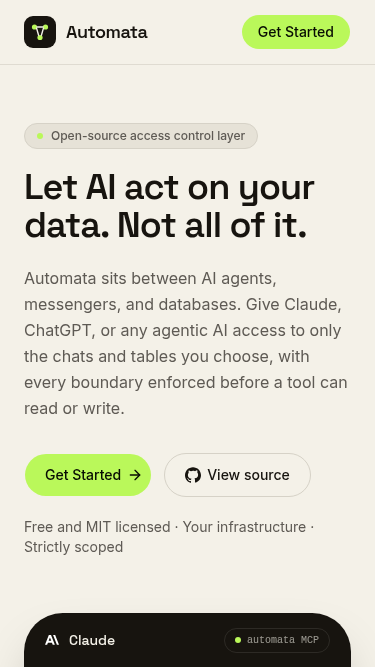
Before changing anything, look at what is live today. Here is the homepage hero on getautomata.app before we touched it. The headline reads "Let AI act on your data. Not all of it."
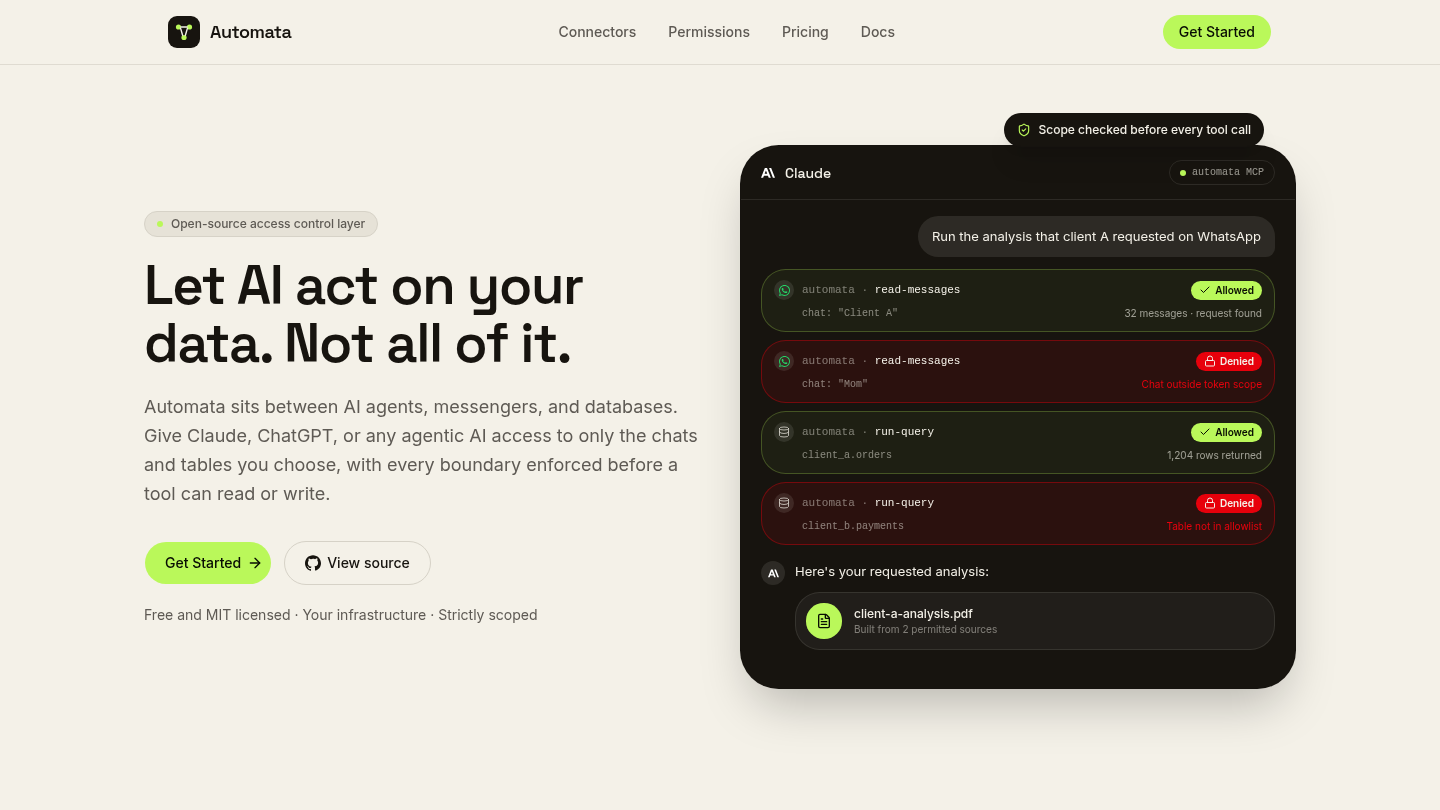
Because the chat was connected to the project, v0 could open the real hero component, the fonts, and the color tokens. That is why every concept it produced looks like our site and not a generic template.
Step 2: Write the prompt
This is the prompt we sent, word for word:
On the main page, currently the header text says "Let AI act on your data. Not all of it."

Can we change it to "Give {{AI}} access to {{service}}. Safely"

{{AI}} and {{service}} should be a list that's animated
{{AI}}: Claude, ChatGPT, Grok
{{service}}: WhatsApp, Telegram, SQL

As for how to animate and present it, I am not sure what's best. Can you create an unlisted concept page and show me 3 possibilities? I want to see the desktop version and mobile version
A few things in that prompt are worth copying:
- It quotes the current text and the new text exactly. There is no guessing about copy.
- It lists the values. The rotating words are spelled out, so nothing gets invented.
- It admits what you do not know. "I am not sure what's best" tells v0 to propose options instead of picking one for you.
- It asks for an unlisted page. v0 built the concepts on a hidden route that is not linked from the site, is kept out of the sitemap, and is marked noindex. The live homepage stayed untouched.
- It asks for desktop and mobile. Headlines that rotate words can break across lines differently on a phone, so you want to see both before you choose.
Step 3: Review the concepts
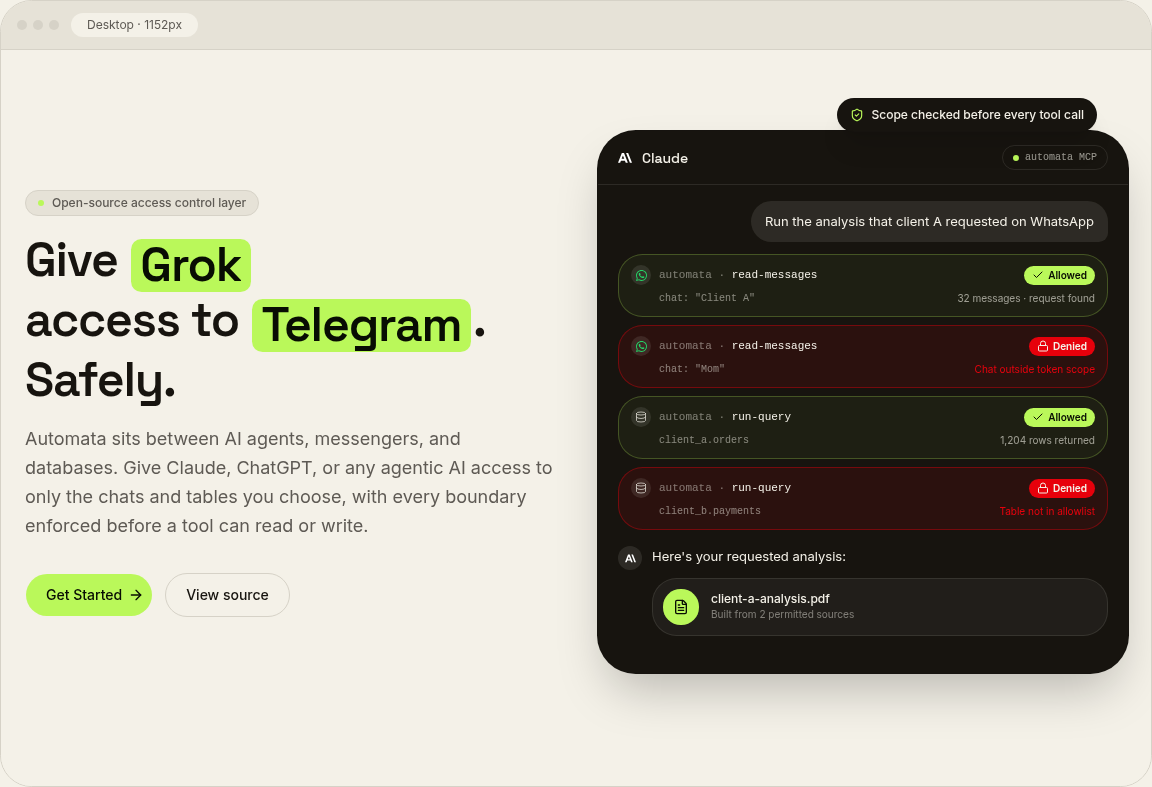
v0 came back with three ways to animate the headline, each shown in a desktop frame and a phone frame on the same page. Here they are.
Concept 1: Slot roll
Each rotating word sits in a lime chip. The old word rolls up and out while the new one rolls in from below, and the chip resizes to fit.
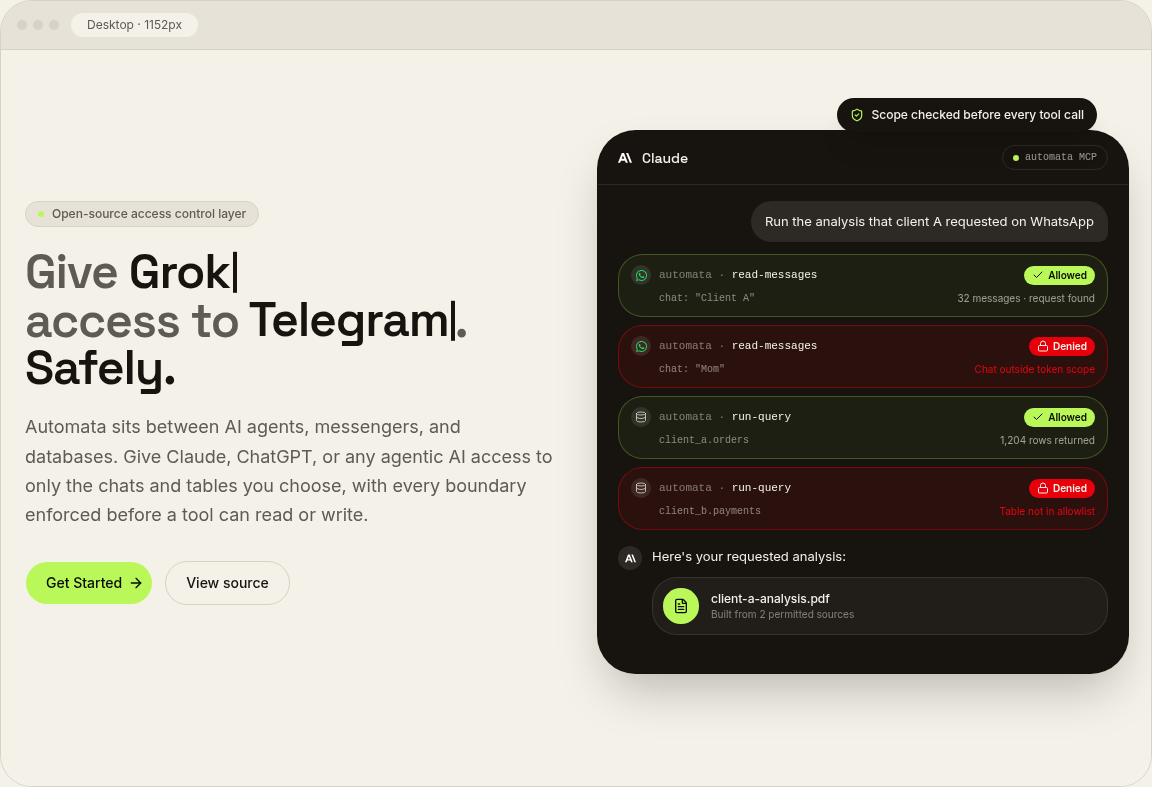
Concept 2: Typewriter
The fixed words are muted. The two swappable words are full ink and are typed and erased with a blinking caret, like a prompt being written.
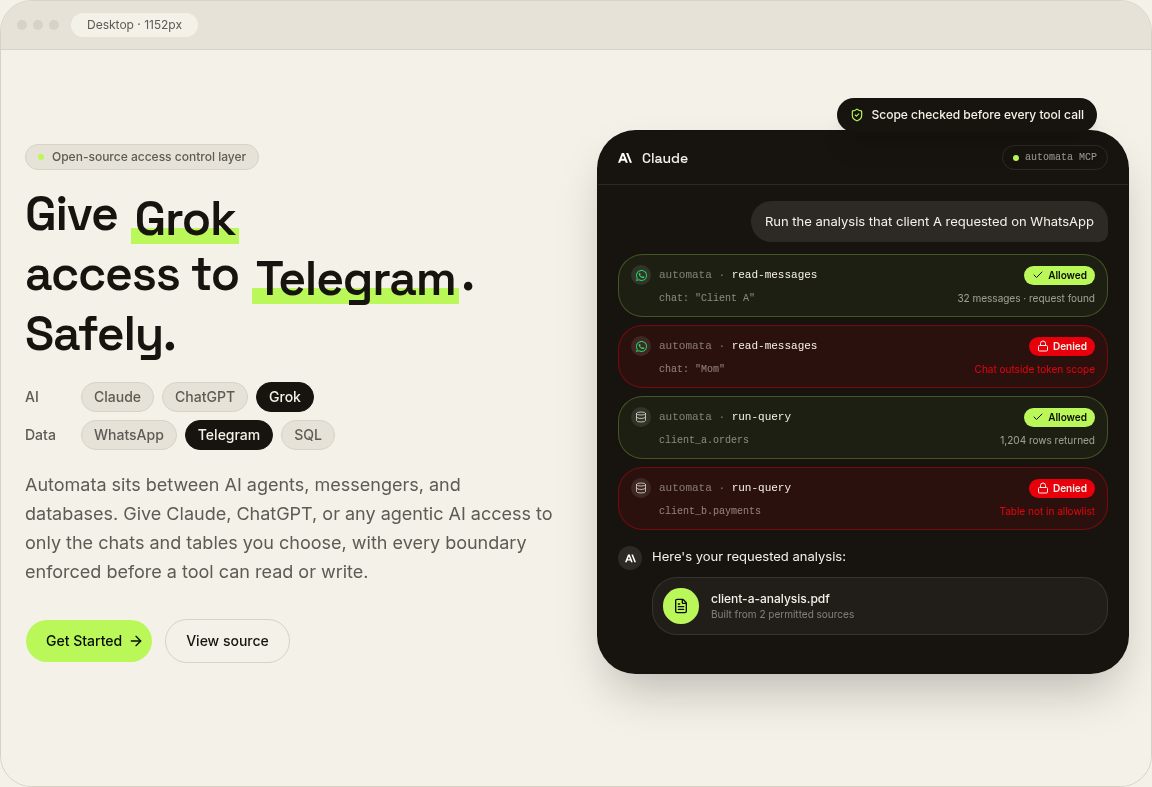
Concept 3: Blur swap with a list
Words cross-fade in place over a marker underline, and small pills under the headline list every option with the current one highlighted.
The phone versions
This is why we asked for mobile. On a narrow screen the sentence wraps, so v0 gave the service word its own line in every concept and checked that the words do not clip or jump while they rotate. The third concept also needs more vertical space for its pills.
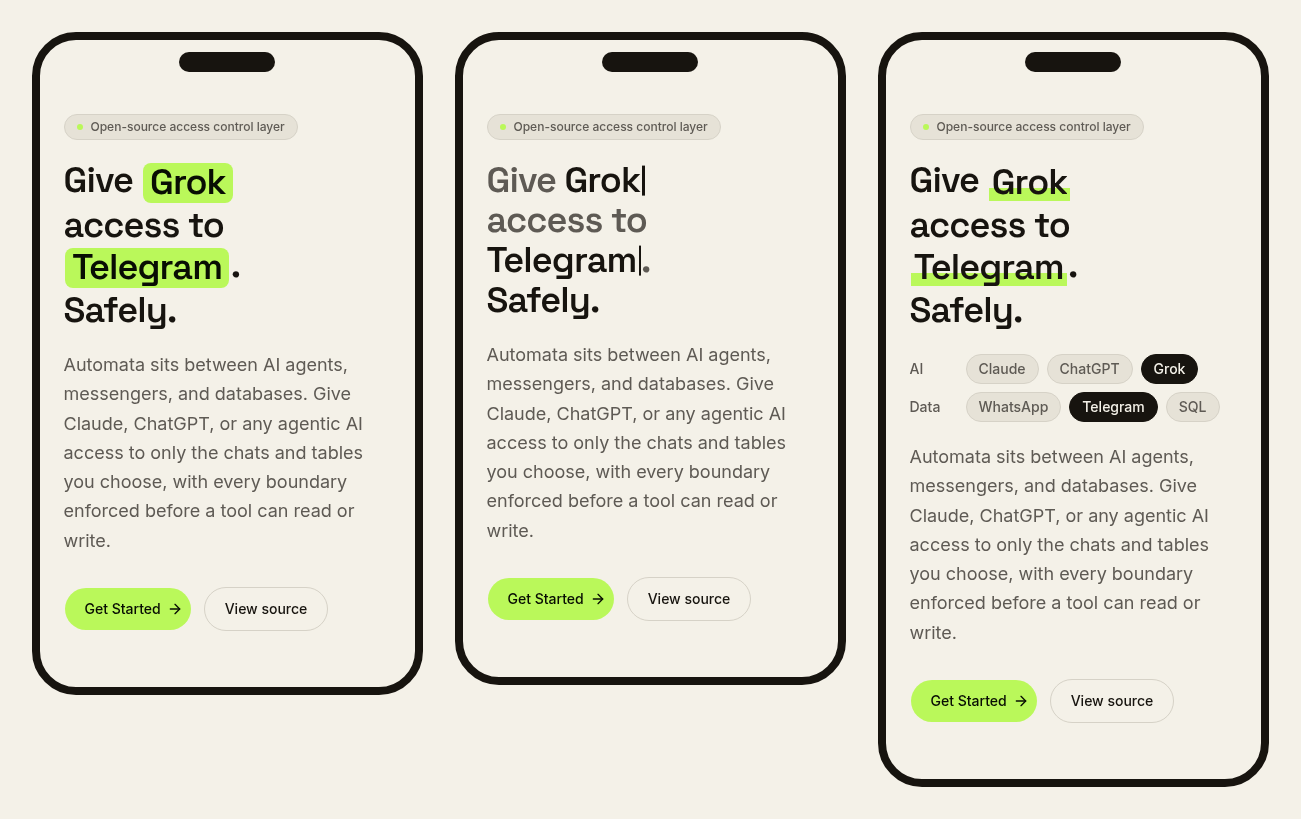
Each concept also came with a short note on its strength and its tradeoff, so we could compare them without reading code. Slot roll is the most energetic. Typewriter fits a product built around prompts. Blur swap is the calmest.
The images above are still frames. Open the concept page in v0's preview to see the timing, then resize the window to check how it behaves on a phone.
Step 4: Approve one
Once we had looked at all three, the follow-up was a single line:
Let's implement Concept 1 Slot Roll
That is enough, because v0 already has the context: it built the concept, so it knows which component to move to the homepage. If you want something changed, say so in the same message, for example "use Concept 1 but slow the roll down" or "take the pill list from Concept 3 and add it to Concept 1."
v0 then replaced the headline in the real hero section. It also updated the places that still repeated the old copy, such as the page title and the social share image, so the site stayed consistent.
Step 5: Check the result
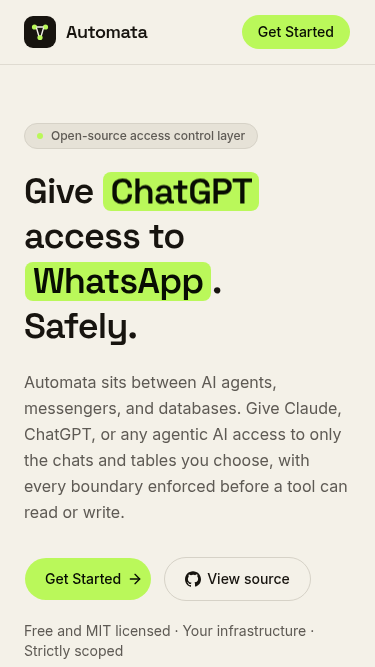
Here is the updated hero. The headline now reads "Give ChatGPT access to WhatsApp. Safely." and the two highlighted words rotate through their lists.
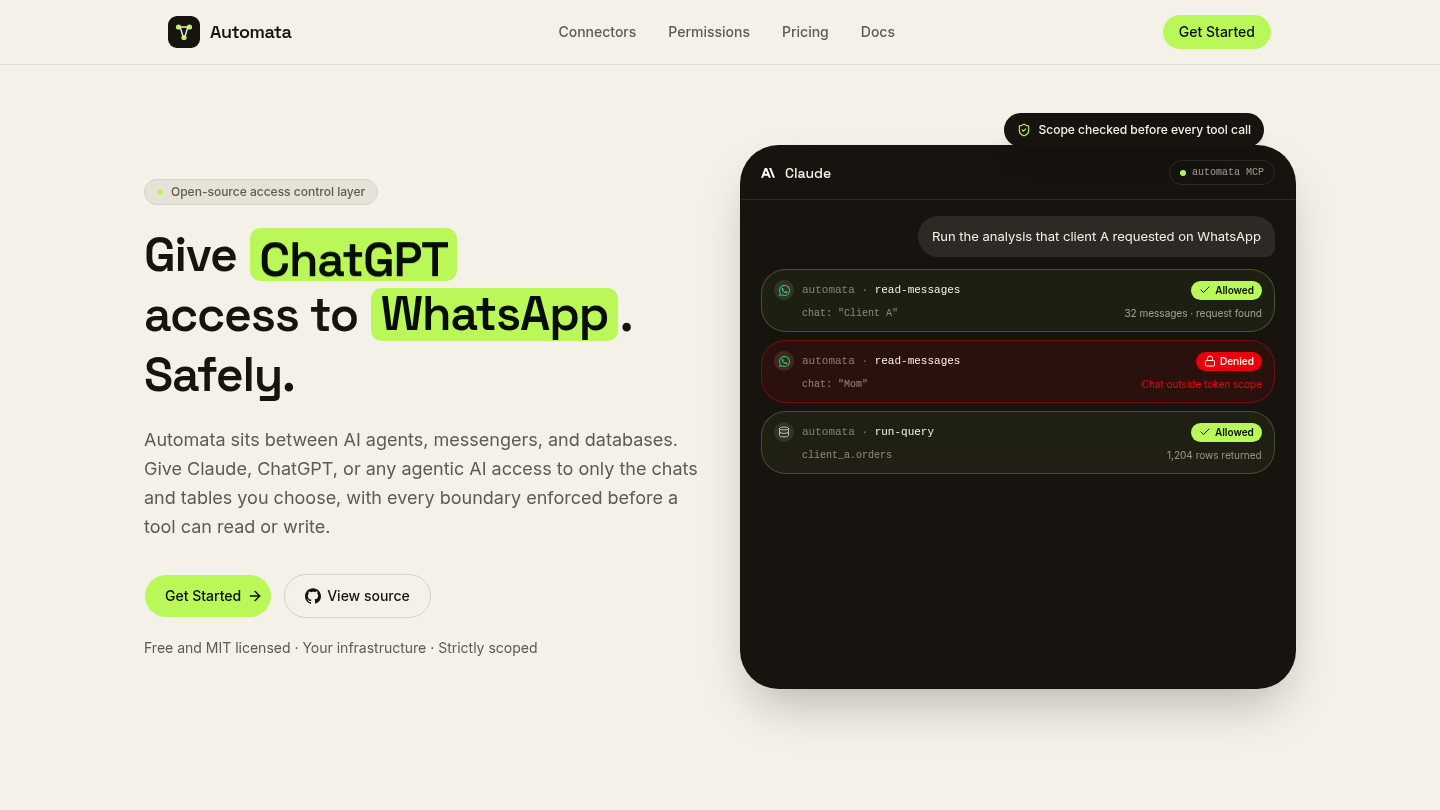
Before you ship, check three things:
- The rotating words do not make the page jump while they change.
- The headline wraps cleanly on a phone.
- The old text is gone everywhere, including the title and social preview.
Step 6: Publish
Then we clicked Publish in the top right of v0. That is the whole step. There was no handoff to an engineer and no separate deploy to babysit, and the new headline went live on the site.
The concept page can stay as a record of the options you considered. It is hidden from search and not linked anywhere. If you would rather not keep it, ask v0 to remove it.
Tips for your own prototypes
- Be exact about copy. Quote the old text and the new text. It saves a round trip.
- Ask for options when you are unsure. Three concepts with tradeoffs are faster to decide on than one design you have to argue with.
- Always ask for mobile. Most of your visitors will see the phone version first.
- Keep experiments off the live site. An unlisted page lets teammates review a link without anything changing for customers.
- Share the link, not a screenshot. For an internal review, send your teammates the preview so they can see the motion and resize it themselves.
- Approve in one line. Name the concept you want and add any tweaks in the same message.
Next steps
- Try the method on a section of your own site, such as a pricing table or a call to action.
- Read how to connect WhatsApp to Claude to see what Automata does.
- Review the permissions docs to see how chat-level access works.
Comments
Questions, corrections, or your own setup? Join in below. Pick any name to post.